Choose a sample you can examine
Use a PDF that includes several structures relevant to your work: headings, lists, an image, a table, links, and perhaps a form. Keep the source file when available. It shows how authoring choices and export settings produced the PDF structure.
Compare the visible page with the tag tree
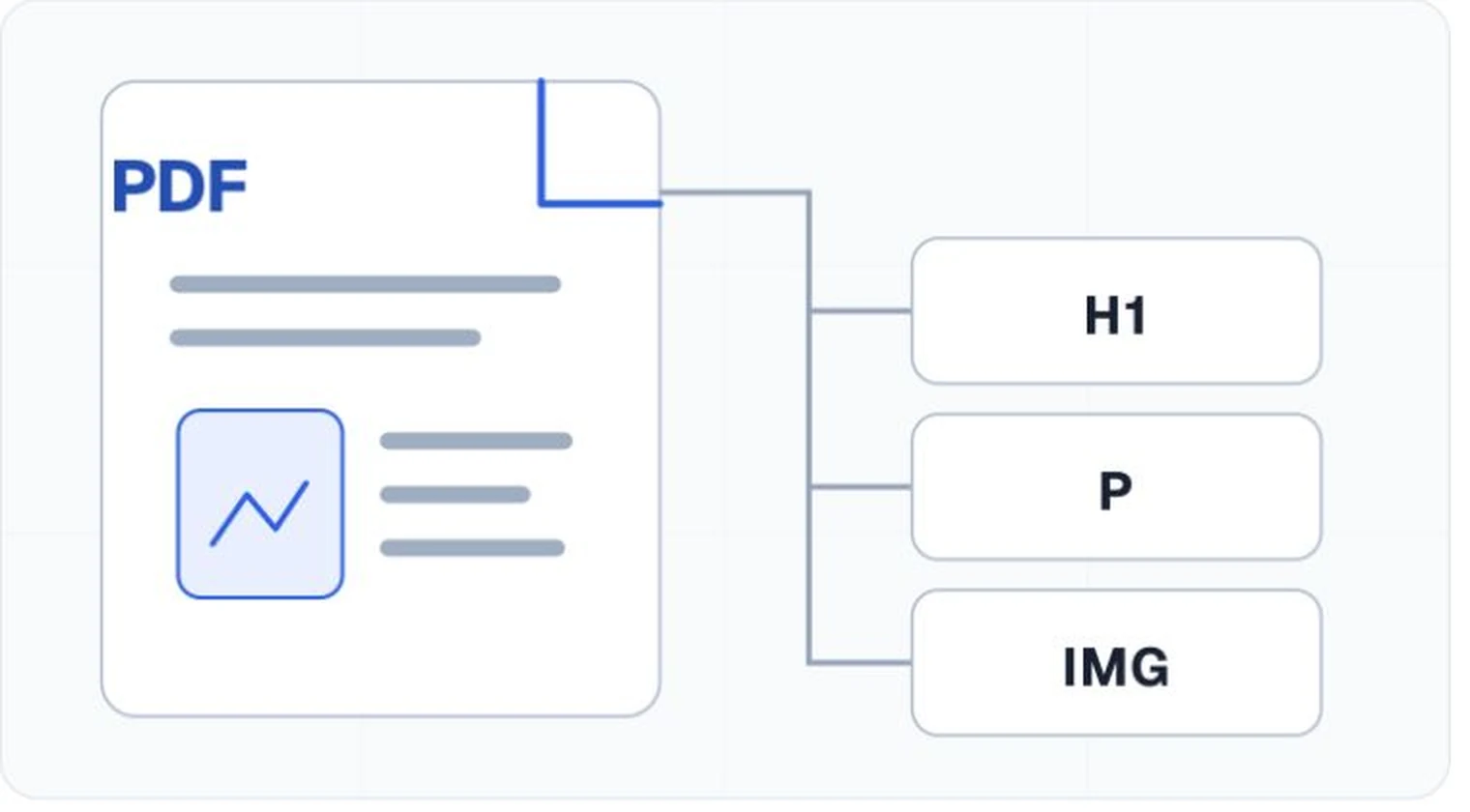
Select objects on the page and find their corresponding structural elements. Confirm that headings express hierarchy, lists contain list items, figures have suitable alternatives, and decorative objects are artifacts. Read the tree in sequence and watch for columns, notes, and captions that appear out of place.
Try the document, do not merely inspect it
Navigate by heading, follow links, move through tables, and complete form controls. Zoom and reflow where supported. Compare alternative text with the image and surrounding prose. A useful sample exposes how the document behaves when the visual page is not the primary interface.
Run a validator and read the details
Validation can show which machine-testable requirements the file meets. Note any assumptions, manual checks, and warnings in the result. A file can pass structural validation while still using poor headings or unhelpful alternative text, so treat the report as one view of the sample.
Borrow the method, not the content
Reuse the authoring styles, export configuration, testing sequence, and quality controls that produced the example. Write alternatives and relationships for your own content. Copying tags or descriptions without their context creates a file that looks similar in a tool but communicates something different.